
Trips & catalog
This page is the field reference — a flat list of every section and every option in the Trip Builder. If you want a guided, step-by-step walkthrough (open the Trips list → click Add New → fill the modal → walk each phase), see Create a trip — step by step.
The Trips list

Open Yatra → Trips → All Trips.
The page has:
- Search — matches title and slug.
- Status pills at the top: All / Published / Draft / Review / Approved / Archived / Trash, with row counts.
- Sort controls.
- Column visibility picker — choices are persisted per-browser to
localStorage(yatra-trips-visible-columns). - + Add New Trip button (top right) → opens the Create New Trip modal.
Default visible columns
| Column | Notes |
|---|---|
| Trip | Trip image + title + small destination / activity / category chips below. |
| Price | Trip price (or starting-from price for traveler-based pricing). |
| Status | Published / Draft / Review / Approved / Archived / Trash badge. |
| Trip Type | Single-day / Multi-day / Flexible. |
| Availability | Available / Sold out / Closed indicator from departures. |
| Bookings | Count of confirmed bookings (visible to all users — not Pro-gated). |
| Created | Trip creation date. |
Default hidden columns
Toggle these on from the column visibility picker if you need them:
- Duration
- Countries
- Difficulty
- Capacity (min / max travelers)
- Attributes (count of custom attribute values)
- Modified (last update date)
Bulk actions
Tick rows then pick:
- Mark as Published / Draft / Review / Approved / Archived
- Move to Trash
- Delete Permanently
From the Trash status pill the actions become Restore to Draft and Delete Permanently.
+ Add New Trip — the modal
Clicking + Add New Trip opens a small modal (not a full page). It asks for:
| Field | Required | Notes |
|---|---|---|
| Trip Title | ✅ | Used for the public page and the slug. |
| Trip URL | ✅ | Auto-generated from the title. Click Customize URL to override. Lowercase letters, digits, hyphens only. |
A live preview of the full URL renders below. Click Create & Continue to create the draft and jump to the Trip Builder. See Create a trip → Step 2 for the full flow.
The Trip Builder
Open any trip row, or hit Create & Continue from the modal above.
The builder has a vertical phase sidebar with these sections (top to bottom):
| # | Section | Phase | Required? |
|---|---|---|---|
| 1 | Trip Basics | 1 — Essentials | ✅ |
| 2 | Location & Route | 1 — Essentials | — |
| 3 | Pricing | 1 — Essentials | ✅ |
| 4 | Availability & Booking | 1 — Essentials | — |
| 5 | Trip Details (Itinerary + Included/Excluded) | 2 — Details | — |
| 6 | Media & Gallery | 3 — Optimization | — |
| 7 | Downloads | 3 — Optimization | — |
| 8 | Categories & Attributes | 3 — Optimization | — |
| 9 | SEO & Marketing | 3 — Optimization | — |
| 10 | Advanced Settings | 4 — Advanced | — |
Top-right action bar stays sticky: Preview, Save Draft / Update Draft, Publish Trip / Update Trip (with a chevron-down dropdown for status variants: Save as Draft, Save for Review, Mark as Approved, Publish, Suspend, Archive).
1. Trip Basics
| Field | Required | Notes |
|---|---|---|
| Trip Title | ✅ | Char counter shows 0–60 recommended. Auto-feeds the slug. |
| Trip URL (slug) | ✅ | Auto-generated; click Edit to override. Live URL preview below the field. |
| Short Description | — | WYSIWYG, 100–150 chars recommended. Shown on cards. |
| Trip Description | — | WYSIWYG (min 260 px). The main public-page body. |
| Featured Image | — | 1200 × 800 px recommended. Preview + Remove below the picker. |
| Trip Highlights | — | Repeater of short text lines ("Sunrise over Mt. Batur", etc.). |
2. Location & Route
| Field | Notes |
|---|---|
| Destinations | Multi-select of Destination taxonomy terms. Powers the destination archive pages. |
| Starting Point | Location picker — name + embedded OpenStreetMap + lat / lng inputs + Use Current Location button. |
| Ending Point | Same picker, for routes that don't end where they started. |
| Seasonal Availability Notes | Short freeform note ("Available year-round except monsoon"). Shown on the public page. |
3. Pricing
A Pricing Type toggle picks one of two modes:
| Mode | Fields |
|---|---|
| Regular Pricing | Original Price (required), Discounted Price (optional — public page shows strike-through over Original). |
| Traveler-Based Pricing | Repeater of { Category, Original Price, Discounted Price }. Categories come from Yatra → Traveler Categories. |
Pricing is required to publish
At least one valid price (Regular Original, or one Traveler-Based row) must be set before Publish Trip will succeed.
Apply percentage / fixed-amount adjustments by trip, destination, season, or last-minute window. Group-size discounts, early-bird bumps, and per-traveler-category multipliers — manageable from Yatra → Dynamic Pricing.
Unlock dynamic pricing →4. Availability & Booking
Five sub-blocks inside one section.
Availability Period
| Field | Notes |
|---|---|
| Available From / Available To | Window during which the trip is bookable. |
| Booking Window (days in advance) | How far ahead bookings are accepted. |
| Seasonal Availability Notes | Customer-facing note. |
Capacity & Travelers
| Field | Notes |
|---|---|
| Minimum Travelers | Smallest party size accepted (default 1). |
| Maximum Travelers | Hard cap (default 0 = unlimited). |
Departure Time
| Trip type | Controls |
|---|---|
| Day tour | Enable Multiple Time Slots checkbox. Off: single Default Departure Time. On: repeater of { time, label }. |
| Multi-day | Single Default Departure Time. |
Booking Policies
| Field | Notes |
|---|---|
| Minimum Age | Hard floor for booking. 0 = no restriction. |
Accommodation
A sub-block (Home icon) describing what travelers sleep in.
| Field | Type | Notes |
|---|---|---|
| Accommodation Type | text | Placeholder: Hotel, Resort, Teahouse, Camping. Free text; appears on the public page. |
| Meal Plan | select | Five options: Breakfast Only, Half Board (Breakfast + Dinner), Full Board (All Meals), All Inclusive, No Meals Included. |
| Accommodation Details | textarea | Free text — describe the lodging in more depth. |
Transportation
A sub-block (Car icon).
| Field | Type | Notes |
|---|---|---|
| Transportation Included | checkbox | Toggle. The three fields below are hidden until this is on. |
| Pickup Location | text | Conditional. Placeholder: Airport, Hotel, City Center. |
| Dropoff Location | text | Conditional. |
| Transportation Details | textarea | Conditional. Free text — describe vehicles, route, schedule. |
For trips with fixed departure dates (Tuesdays only, every other Saturday), you'll create individual departures under Yatra → Departures. See Departures & availability.
5. Trip Details
A merged section with two sub-tabs.
Itinerary
A day-by-day repeater. Each day has a Day number, Day title, and a list of entries. Per entry:
| Field | Notes |
|---|---|
| Title | Short label for the entry. |
| Description | Rich text. |
| Location | Optional location string. |
| Start / End time | Time pickers. |
| Duration | Minutes / hours / days. |
| Cost | Optional currency amount. |
| Notes | Internal-only. |
| Included / Excluded items | Per-entry sub-lists. |
| Images | Optional WordPress media picker. |
item_type_id / item_id | Optional reference to a global Itinerary Item. |
About badges
Older revisions of this doc mentioned "distance / altitude / accommodation" badges per day — those aren't first-class fields on ItineraryEntry. If you want that data, include it inside the Description field.
Included / Excluded
Two side-by-side repeaters of { title, description } rows.
6. Media & Gallery
| Field | Notes |
|---|---|
| Photo Gallery | Grid repeater (drag to reorder). WordPress media picker. Order badges + remove (X) per image. |
| Video URL | YouTube or Vimeo link. Embedded on the public page. |
| 360° Virtual Tour URL | Any embeddable virtual-tour URL (Matterport, kuula.co, etc.). |
| What Makes This Trip Special | Textarea. Renders as its own block on the public page. |
| Trip Story / Narrative | Longer-form narrative. |
| Testimonials | Selector — pick existing trip reviews to highlight. |
7. Downloads
A repeater of downloadable items. Each row:
| Field | Type | Notes |
|---|---|---|
| Title | text | E.g. Packing list, Itinerary PDF, Waiver form. |
| Description | textarea | Short description shown to the customer. |
| Visibility | dropdown | One of: Public (anyone can download), Logged-in users only, Booked customers only. |
| File | WordPress media picker | Any file type (PDF, doc, image, zip…). Thumbnail + Select File button. |
Rows are reorderable via move-up / move-down buttons.
Downloads is free
This section was previously Pro-only. It's enabled for everyone now.
8. Categories & Attributes
| Field | Notes |
|---|---|
| Trip Categories | Multi-select. Hierarchical (subcategories indented with --). Manage under Trips → Categories. |
| Difficulty Level | Single-select. Manage under Trips → Difficulty Levels. |
| Activity Types | Multi-select. Manage under Trips → Activities. |
| Featured Priority | Single-select with four values: None (default), Featured, New, Limited. Drives a corner badge on the public trip card. |
| Custom Attributes | Per-attribute input — define attributes under Trips → Attributes, then assign values here. |
Featured Priority — the actual enum
The valid values are none, featured, new, limited. Older docs mentioned sticky / high-priority — those aren't in the source enum.
9. SEO & Marketing
Search Engine Optimization
| Field | Notes |
|---|---|
| Meta Title | Max 60 chars. Falls back to the trip title when empty. |
| Meta Description | Textarea, max 160 chars. |
| Meta Keywords | Comma-separated. Most engines ignore these; included for completeness. |
| Google Preview | Live read-only preview card. |
Frequently Asked Questions
Repeater of { Question, Answer }. Click + Add FAQ to append. Renders as an accordion on the public trip page and as FAQPage JSON-LD for SEO.
10. Advanced Settings
Version control
- Version — readonly number that auto-increments on every save.
Scheduled publishing
| Field | Notes |
|---|---|
| Schedule Publish Date | Auto-publishes on this date. |
| Schedule Unpublish Date | Auto-moves to draft / archived on this date. |
Seasonal auto-management
| Field | Notes |
|---|---|
| Enable seasonal auto-management | Master toggle for the two date fields below. |
| Auto-Enable Date | Date the trip becomes bookable each year. |
| Auto-Disable Date | Date it stops being bookable. |
Frontend Tabs Management
Drag-to-reorder repeater of the tabs shown on the public trip page. The 10 tab types: Overview, Itinerary, Included, Location, Important Info, Downloads, FAQ, Story, Special, Testimonials.
Per-tab controls: grip handle, label (editable), content-type badge (read-only), enable/disable toggle, icon picker, custom content (for content_type=custom tabs only), and delete (only on custom tabs you've added).
Saving and publishing
The top-right action bar:
- Preview — opens the public trip in a new tab with current unsaved state.
- Save Draft / Update Draft — saves without changing status.
- Publish Trip / Update Trip — primary blue button with a chevron-down dropdown for status variants:
| Dropdown action | Resulting status |
|---|---|
| Save as Draft | draft |
| Save for Review | review |
| Mark as Approved | approved |
| Publish | publish |
| Suspend | suspended |
| Archive | archived |
Hitting Publish with missing required fields (Title, Slug, Pricing) shows inline errors and jumps the form to the first failing section.
Destinations, Activities, Categories, Difficulty, Attributes
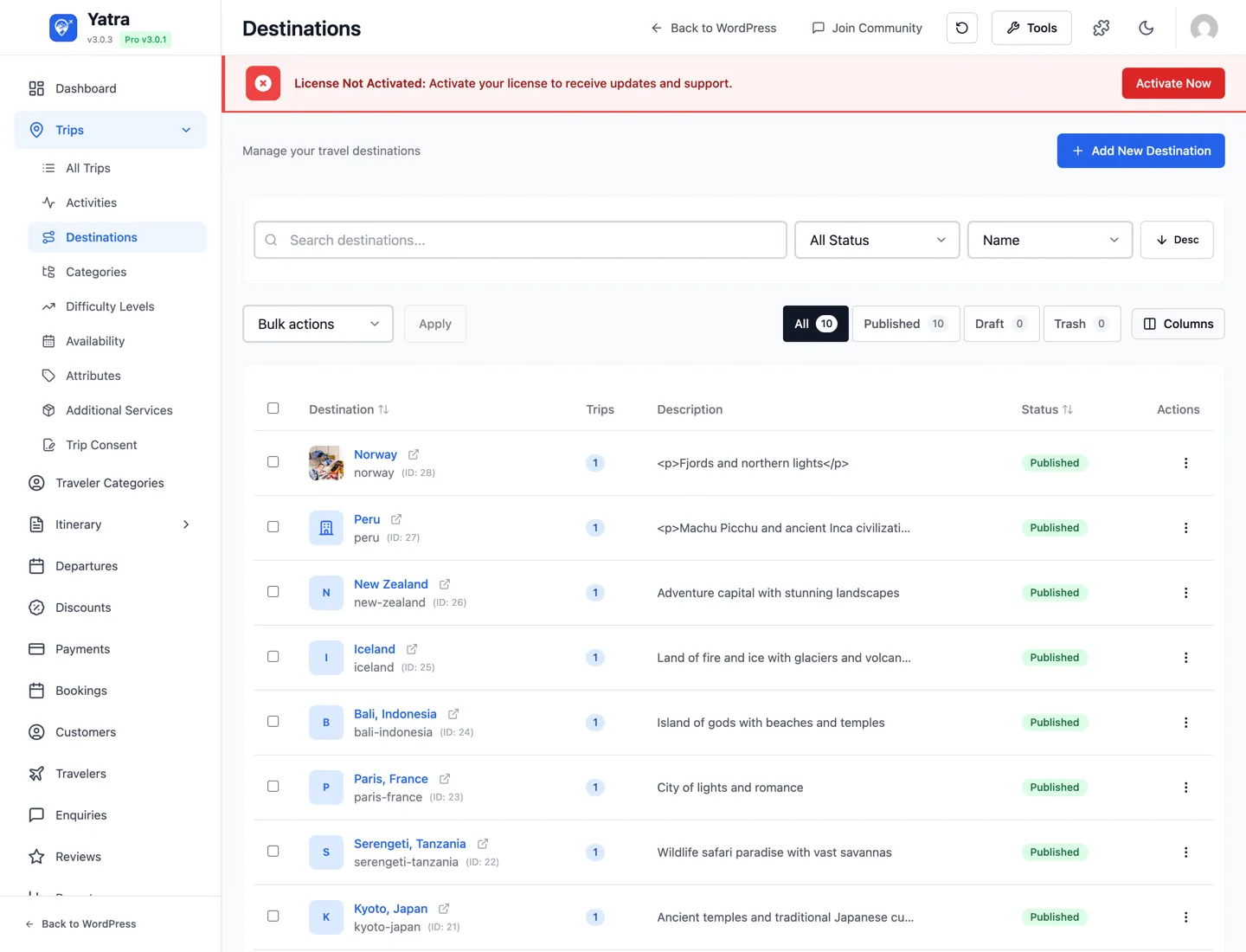
Each is a list-and-form pair under Yatra → Trips → …:
- Destinations — places. Each has name, slug, image, description.
- Activities — what travelers do.
- Trip Categories — top-level grouping (Adventure, Culture, Wildlife…).
- Difficulty Levels — Easy / Moderate / Challenging / Strenuous (your terms).
- Attributes — custom taxonomies you define (Style: Lodge / Camping / Hotel; Group size: Solo / Small / Large).
These all appear as filters on the public catalog and can be reused across trips.
Traveler Categories
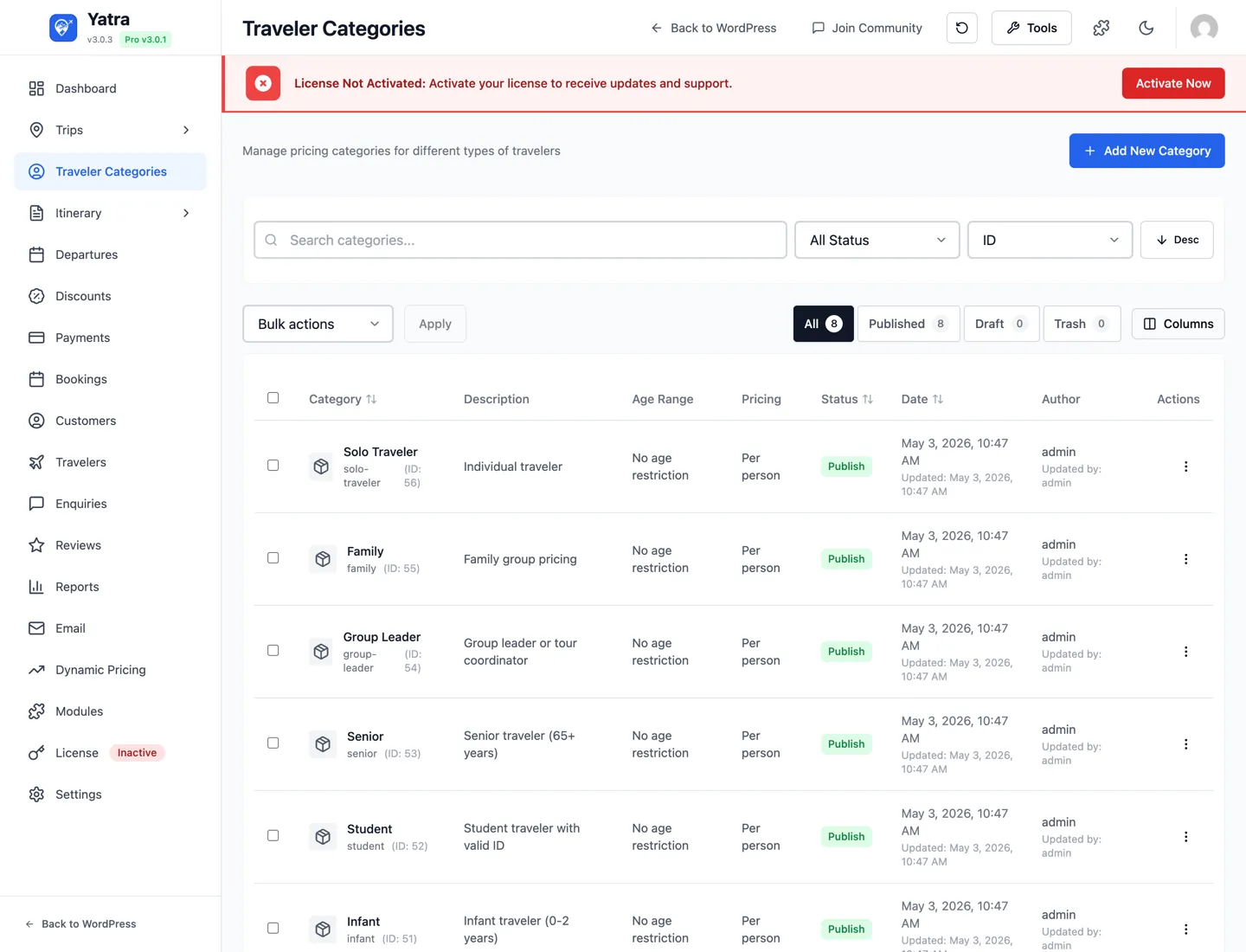
Open Yatra → Traveler Categories. Each has:
| Field | Notes |
|---|---|
| Name | Display label. |
| Min / Max age | Optional. |
| Pricing mode | Per person or Per group. |
| Min / Max pax | Per-category booking limits. |
| Status | Active / Inactive / Publish / Draft. |
If a trip uses Traveler-Based Pricing, prices are set in the trip's Pricing section per category row.
Tips & best practices
- Keep titles short (under 60 characters). They show in catalog cards and search snippets.
- Set Featured Priority strategically. Limit Featured and Limited to your top trips so the badge means something.
- Use Difficulty Level, not Categories, for pacing. Categories should be marketing themes; difficulty is operational.
- One image per gallery entry. Don't duplicate the featured image in the gallery — it shows in both places automatically.
- Use Meta Description. Google often uses it directly in search results — worth one minute per trip.
Where to go next
- Create a trip — step by step — guided walkthrough with screenshots.
- Departures & availability — fixed departures, recurring availability rules.
- Bookings & customers — the booking lifecycle.
- Payments — gateways and refunds.
- Pro modules — every Pro feature listed.