
Scheduled Payments PRO
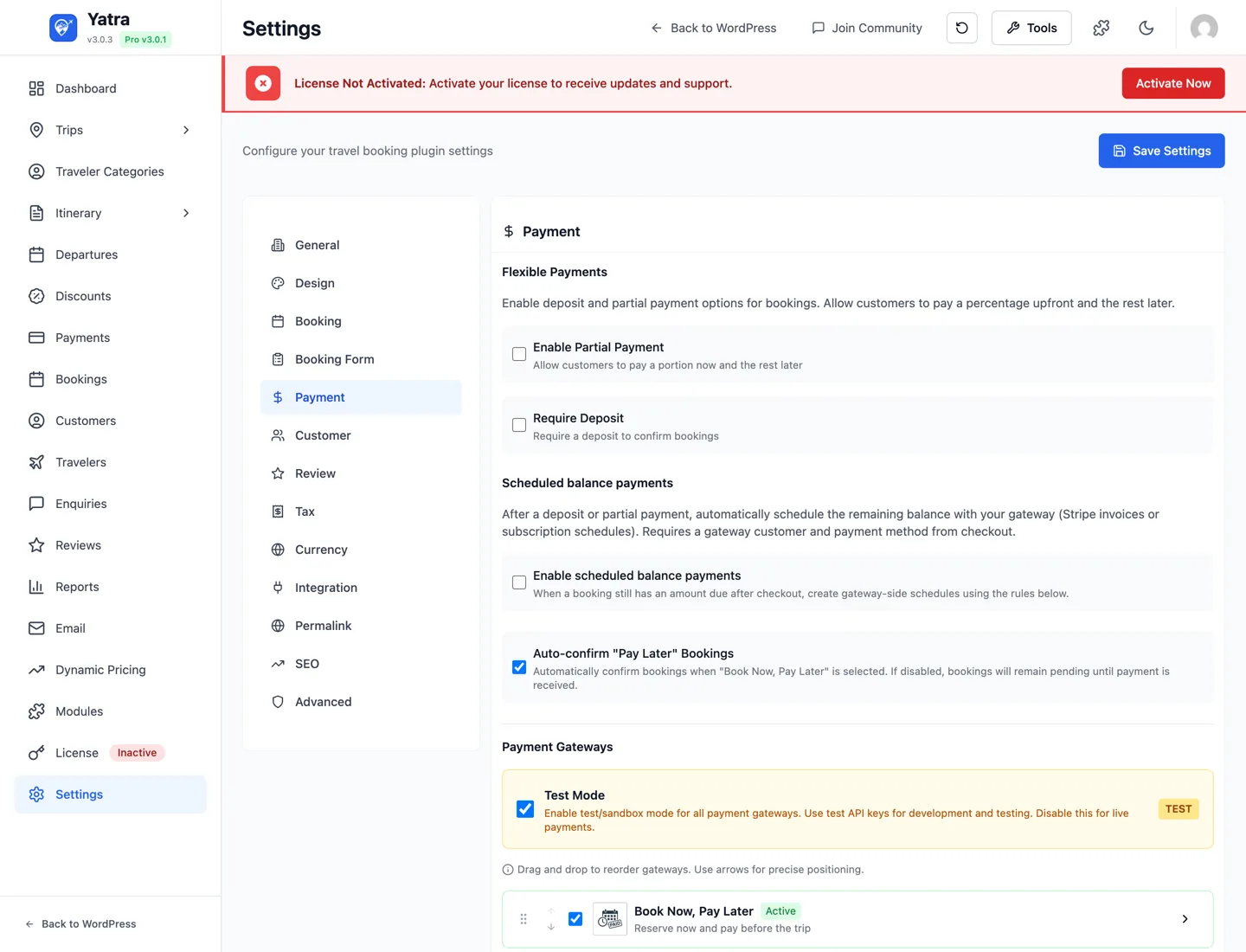
After a customer pays a deposit or partial payment at booking, automatically charge the remaining balance on a future date — once, or as installments — using the card saved at the gateway. Customer never has to log back in. Works best with Stripe (which keeps the payment method on file by default).
You can anchor the balance to the tour date instead of the booking date — e.g. "balance due 14 days before departure" — and Yatra will:
- Auto-charge the balance that many days before the tour when a card is on file (Stripe), or
- Email a secure "pay your balance" link before the tour when no card is saved (bank transfer, Pay Later, or any gateway that didn't vault a card), and
- Require full payment up front when a booking is made inside that window (e.g. someone books 5 days before a tour whose balance is due 14 days before) — there's no time left to collect a balance, so the deposit option disappears at checkout and 100% is charged.
What you'll need
| Thing | Where to get it |
|---|---|
| Yatra Pro license | Yatra → License |
| Scheduled Payments module enabled | Yatra → Modules → Scheduled Payments |
| Flexible Payments enabled too | Required — Scheduled Payments charges the balance, which only exists when there's been a partial/deposit payment first. |
| A gateway that supports off-session charges | Stripe is the supported gateway for automatic charging. With the tour-date anchor, other gateways (bank transfer, Pay Later, PayPal, Mollie, etc.) instead receive a secure balance-payment link by email before the tour — so every gateway is covered, one way or the other. |
Step 1 — Enable the module
- Open Yatra → Modules.
- Find Scheduled Payments → toggle on.
- The Scheduled Payments section under Settings → Payment becomes editable.
Step 2 — Configure the schedule
Open Yatra → Settings → Payment → Scheduled Payments.
| Field | Setting ID | Default | Notes |
|---|---|---|---|
| Enable scheduled balance payments | enable_scheduled_payments | off | Master toggle. |
| Balance schedule | balance_anchor | booking | booking = a fixed number of days after the deposit (original behaviour); tour = a number of days before the tour date. |
| Days before tour | balance_due_days | 14 | Shown only when Balance schedule = before the tour date. The balance is collected this many days before the tour starts; booking inside this window forces full payment. |
| Schedule type | scheduled_payment_type | single | single = one balance charge; installments = multiple payments. Installments apply to the booking anchor only — the tour anchor is always a single balance. |
| Days until first charge | scheduled_payment_days | 15 | Days after the deposit before the first attempt. Used by the booking anchor only. |
| Number of installments | scheduled_payment_installments | 3 | Shown only when Schedule type = installments. |
| Days between installments | scheduled_payment_interval | 30 | Shown only when Schedule type = installments. |
| Payment reminder (days before) | scheduled_payment_reminder_days | 3 | Yatra emails the customer this many days before each charge / balance link. |
Save.
Backward compatible
Balance schedule defaults to booking — so existing sites behave exactly as before until you switch it to before the tour date. Switching the anchor only affects new schedules; already-scheduled charges keep their dates.
What each payment method can do
| Payment method | Balance collection | How |
|---|---|---|
| Stripe | Automatic off-session charge | The card used for the deposit is vaulted at Stripe; Yatra charges the balance on the due date (as a Stripe invoice) with no customer action. A reminder email goes out Reminder days before. |
| Razorpay | Automatic off-session charge | Same as Stripe, via a Razorpay saved token. |
| PayPal | Payment link | PayPal does not hand back a reusable customer + payment method pair in this flow, so Yatra cannot charge again by itself. The customer receives the secure Pay your balance now link instead. |
| Mollie, Paystack, Square, Authorize.Net, TBank | Payment link | No vaulted method → link-based. |
| Bank Transfer / SEPA, Pay Later (offline) | Payment link / reminder | Yatra cannot collect money itself. With Balance schedule → before the tour date, the daily cron creates a link-based reminder for every booking that still owes money — including deposits you recorded by hand — and emails the Scheduled Payment Reminder with |
Two practical notes:
- The automatic link-based reminder for offline bookings needs the tour-date anchor (balance due N days before the tour). With the booking-date anchor, only bookings whose gateway vaulted a card get a schedule row; for everything else use Payments → Scheduled → Outstanding → Send balance payment link to email the link on demand.
- You can send that link at any time from the Outstanding tab, without waiting for the daily window.
Schedule relative to the tour date
Set Balance schedule → before the tour date and Days before tour → 14 to get the classic tour-operator model:
20% deposit at booking · remaining balance due 14 days before the tour · pay in full if you book within 14 days of departure.
Here's exactly what Yatra does, by gateway:
| Situation at booking | What happens |
|---|---|
| Tour is more than 14 days away, card on file (Stripe) | Deposit taken now. Balance auto-charged 14 days before the tour, off-session. A reminder email goes out a few days earlier. |
| Tour is more than 14 days away, no saved card (bank transfer, Pay Later, PayPal, Mollie…) | Deposit taken (or recorded) now. A secure "Pay your balance now" link is emailed before the tour; the customer clicks it and pays the balance online — no login needed. |
| Tour is 14 days away or less | Deposit / partial options are hidden at checkout — the customer pays 100% up front. There's no time to collect a balance, so a deposit would leave money uncollected. |
The "days before tour" date is derived from the booking's departure date (start_date, falling back to travel_date).
The secure balance-payment link
For bookings that can't be auto-charged, Yatra emails the customer a tokenised, guest-accessible link before the tour (in the Scheduled Payment Reminder email). Clicking it opens the normal balance checkout for that booking — no account or login required. The link:
- is signed and scoped to a single booking (it can't be guessed or reused for another booking),
- expires,
- only ever charges the server-stored outstanding balance, and
- self-retires once the balance is paid (or the booking is cancelled).
Add the pay button to a customised reminder template
The link is available as the merge tag, and the default Scheduled Payment Reminder template already renders a Pay your balance now button. If you've customised that template, add (or reset the template) so the button appears.
Step 3 — Verify with a test booking
- Make sure Flexible Payments is also on (so the booking has a balance to charge).
- In a private browser window, book a trip with Stripe (or another off-session-capable gateway). Pay the deposit / partial amount.
- The booking saves with status
partialand a Due Now balance. - Yatra schedules the balance charge based on the settings above. You'll see a row in Yatra → Payments with status Scheduled.
- (Optional) Manually trigger the first charge from the row's Charge now action to verify the flow without waiting.
- Verify in your Stripe dashboard that the second charge went through, and the booking flips to
paid.
How the flow looks to the customer
Booking anchor (charge N days after the deposit):
Day 0  — Customer pays $99 deposit on a $499 trip
Day N-3 — Reminder email: "Your balance of $400 will be charged on Day N"
Day N   — Yatra auto-charges $400 from the saved card
         — Customer receives a Scheduled Payment Received email
         — Booking status: paid
Tour anchor — balance due 14 days before departure (card on file):
Booking day       — Customer pays $99 deposit on a $499 trip departing 15 Aug
1 Aug (tour − 14) — Yatra auto-charges the $400 balance from the saved card
~29 Jul (−3 days) — Reminder email went out a few days before
15 Aug            — Tour departs, fully paid
Tour anchor — bank transfer / no saved card:
Booking day       — Deposit recorded; booking is `partial`
~29 Jul           — "Pay your balance now" email with a secure link
                    Customer clicks → pays the $400 online → booking `paid`
Tour anchor — booked inside the window:
5 Aug — Customer books the 15 Aug tour (only 10 days out)
      — Checkout shows no deposit option; full $499 is charged up front
If the charge fails (expired card, insufficient funds), Yatra:
- Marks the scheduled payment as Failed.
- Sends the Scheduled Payment Failed email to the customer (with a link to update their payment method).
- Sends the Admin: Scheduled Payment Failed email to you.
- Retries on the schedule defined by your gateway's smart-retries (Stripe retries 3 times over a week by default).
Installment example
With Schedule type = installments, Number = 3, Days between = 30, Days until first = 7:
Day 0  — Deposit paid: $99
Day 7  — Installment 1: $134 charged
Day 37 — Installment 2: $133 charged
Day 67 — Installment 3 (balance): $133 charged
Day 67 — Booking flips to paid
Yatra divides the remaining balance evenly across installments; the final installment absorbs any rounding so the total matches exactly.
The Scheduled Payments admin
Scheduled charges show in Yatra → Payments with:
- Status =
scheduled(pending) /completed(charged) /failed(retry expected) - Charge date = when the attempt will run
- Amount = the scheduled amount
- Linked booking = clickable link to the booking detail
You can:
- Charge now — skip the schedule and attempt the charge immediately.
- Reschedule — change the future charge date.
- Cancel — stop the scheduled charge (e.g. if the customer wires the money manually).
Required email templates (already free)
Scheduled Payments uses four templates from the free transactional catalog:
scheduled_payment_reminder— sent N days beforescheduled_payment_succeeded— sent on successful chargescheduled_payment_failed— sent to customer on failureadmin_scheduled_payment_failed— sent to admin on failure
The templates are listed in the Templates tab but read-only until this module is on.
Troubleshooting
Charges fail with "no payment method" — the gateway didn't save the card. Stripe saves cards by default; other gateways may require explicit Save payment method opt-in. Switch to Stripe or enable card-on-file in the gateway settings.
Customer wants to use a different card for the balance — they can update their payment method via the link in the Scheduled Payment Reminder email. Their account page also has a Saved payment methods section (Stripe only).
Scheduled charges or balance-link emails don't fire — Yatra uses two WP-Cron jobs: yatra_sync_scheduled_payments (twice daily) runs the auto-charges, and yatra_send_payment_reminders (daily) sends reminders and creates/sends the tour-anchored balance links. If WordPress cron is broken, neither fires. Confirm real system cron is configured, or trigger them manually to test:
wp cron event run yatra_send_payment_reminders
wp cron event run yatra_sync_scheduled_payments
Tax / discount applies twice on the balance — Yatra computes the balance as total - amount_paid. Tax is already included in total; you shouldn't see double-tax. If you do, look at the booking's Payment Summary breakdown — likely an additional_services line is firing post-deposit.
Useful links
- Flexible Payments — the required companion module that creates the balance to charge.
- Payments → Stripe — gateway setup; Stripe is the recommended gateway for off-session charges.
- Settings → Payment — full field reference for the Scheduled Payments section.
- Hooks & filters —
yatra_scheduled_payment_due,yatra_scheduled_payment_succeeded,yatra_scheduled_payment_failed.
Where to read more
- All modules — module catalog.