
Bookings & customers
This page covers everything under the bookings family of admin menus:
| Menu | What it manages |
|---|---|
| Yatra → Bookings | Every booking — list, detail page, manual create / edit, statuses |
| Yatra → Customers | Customer profiles, loyalty tier, status, total spend (Pro) |
| Yatra → Enquiries | Pre-sale enquiries from the trip page / contact form, with a respond-in-admin flow |
| Yatra → Reviews | Trip reviews and their moderation queue |
| Yatra → Discounts | Promo codes (free) and group-size discounts (Pro) |
For the configuration side (cancellation policy, expiry, waitlist toggles), see Settings → Booking. For the form builder that shapes the public checkout, see Settings → Booking Form.
The Bookings list
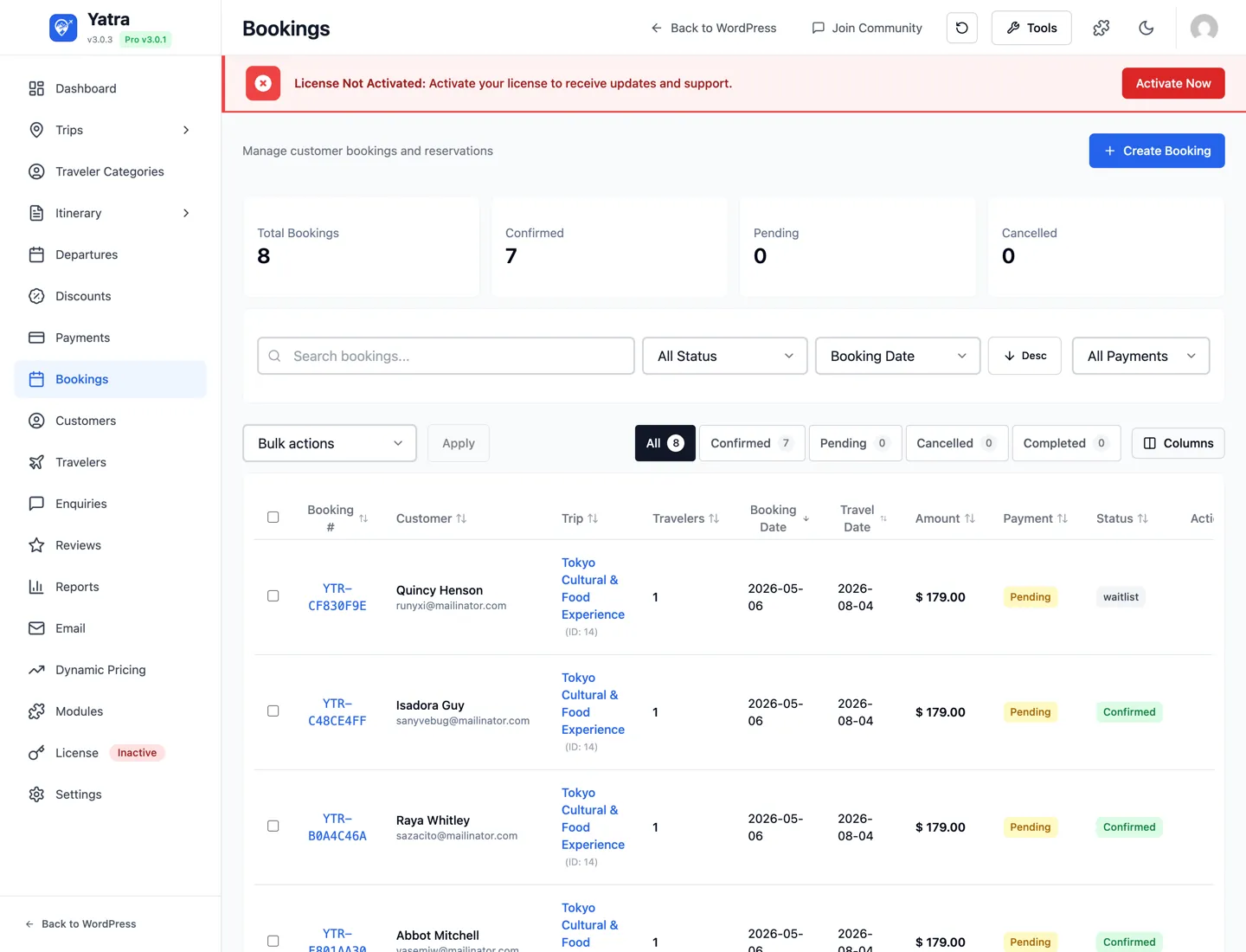
Open Yatra → Bookings.
The page has three blocks:
- Stats cards (top) — four cards showing Total Bookings, Confirmed, Pending, Cancelled counts.
- Filter bar — search + status pills + sort + column visibility + reset.
- Bookings table.
Default columns
| Column | Notes |
|---|---|
| Booking # | Monospace booking number, links to the detail page. |
| Customer | Customer name; email shown as a subtitle. |
| Trip | Trip title (with trip ID), links to the Trip Builder. |
| Travelers | Number of travelers. |
| Booking Date | When the booking was placed. |
| Travel Date | When the trip starts. |
| Amount | Total, with "Paid: $X" subtitle when partially paid. |
| Payment Status | Badge (Paid / Pending / Partial / Refunded). |
| Booking Status | Badge (Confirmed / Pending / Cancelled / Completed). |
Column visibility is per-browser; choices are saved to localStorage under yatra-bookings-visible-columns.
Status filter pills
- All Status
- Confirmed
- Pending
- Cancelled
- Completed
Counts beside each pill come from getBookingStats().
Search
The search box matches booking number, customer name, and trip title.
Sort
Sort by Booking Date (default), Travel Date, Booking Number, Customer, Trip, Amount, or Status — toggle ascending / descending.
Bulk actions
Tick rows, then pick from the dropdown:
- Mark as Confirmed
- Mark as Pending
- Mark as Cancelled
- Mark as Completed
- Delete permanently
The available actions adapt to the current status filter — e.g. when you're already viewing "Confirmed" bookings, "Mark as Confirmed" is hidden.
+ Add New Booking
Unlike Trips (which use a modal), the Add New Booking button navigates to a full-page form at:
/wp-admin/admin.php?page=yatra&subpage=bookings&action=createThat form is documented under Edit a booking below.
Booking detail page

Clicking a booking row opens its detail page at:
/wp-admin/admin.php?page=yatra&subpage=bookings&action=view&id=<N>Sections from top to bottom:
1. Booking Overview
The hero header with booking number, trip, booking date, travel date, and number of travelers. Immediately below: the Payment Summary breakdown.
Payment Summary
Line-by-line itemisation:
- Trip Base Price (per-traveler × travelers)
- Additional Services (Pro module line items, if any)
- Discount (negative number, emerald-coloured)
- Itinerary Costs (sum of per-day costs, if non-zero)
- Taxable Amount
- Tax (with tax-inclusive badge when applicable)
- Net Amount
- Amount Paid
- Due Now
2. Customer Information
Name, email, phone, country.
3. Travelers Information
Renders per-traveler with the fields you've configured in Settings → Booking Form → Per-traveler form. The first traveler gets a Lead badge. Common fields:
- First / Last name
- Passport number
- Date of birth
- Nationality
- Any custom fields from your Booking Form Builder
4. Emergency Contact
Renders the fields you've configured in Settings → Booking Form → Emergency Contact form. Hidden when no data was collected.
5. Special Requests
The free-text notes field the customer filled in at checkout (booking.notes, exposed as special_requests in the API).
6. Google Calendar Sync PRO

Shown only when all three are true:
- Yatra Pro is active.
- The Google Calendar module is enabled.
- This booking has a
google_calendarpayload.
Fields displayed:
- Status badge — Synced / Failed / Not synced
- Last synced timestamp
- Calendar ID
- Event ID
- Error message (only when status = Failed)
7. Payment Information (sidebar)
- Payment Status badge
- Payment Method (gateway icon + name)
- Trip Price per Person (with "Tax Incl." badge if your tax setting is inclusive)
- Total Amount (with same tax-inclusive badge when applicable)
8. Discount Applied (conditional)
Visible only when discount_amount > 0. Shows:
- Discount type — Group or Coupon (auto-detected from the code string).
- Code — monospace, on an emerald-coloured chip.
- Savings — the discount value in big emerald text.
9. Consent Status PRO
Shown only when all three are true:
- Yatra Pro is active.
- The Trip Consent module is enabled.
- At least one consent form is required for this booking.
Fields:
- Headline — All Consents Signed or Pending Signatures.
- Signed count / Total required.
- Progress bar.
- Pending requests list (first 3, with a +N more link to the consent tab).
- Manage Consents button.
10. Timeline
A simple two-row block:
| Row | Value |
|---|---|
| Created | Booking creation timestamp. |
| Last Updated | Most recent change. Hidden when identical to Created. |
(There's no full activity feed in this build — just the two timestamps.)
Booking statuses
| Status | Badge colour | When it's used |
|---|---|---|
| Pending | Yellow | Customer completed checkout but payment hasn't cleared yet. |
| Confirmed | Green | Payment succeeded or an admin manually confirmed the booking. |
| Completed | Blue | Travel date has passed and the trip is delivered. |
| Cancelled | Red | Cancelled by customer (self-cancel within policy) or admin. |
The booking-edit form (BookingForm.tsx) also exposes two extra statuses that the listing doesn't filter by — Refunded and Failed.
Payment statuses
| Status | Badge colour | When it's used |
|---|---|---|
| Paid | Green | Full balance settled. |
| Partial | Orange | Some money received (deposit or first installment). |
| Pending | Yellow | Awaiting payment. |
| Refunded | Gray | Refund processed via gateway dashboard + marked in Yatra. |
Edit a booking
The + Add New Booking button (and the per-row Edit action) take you to a full-page form with these sections.
Customer Information
| Field | Required | Notes |
|---|---|---|
| Customer Name | ✅ | Used as the lead-traveler name when no separate lead is filled in. |
| Customer Email | ✅ | Validated against an email regex. |
| Customer Phone | — | Optional. |
| Country | — | 20+ countries in the dropdown. Drives tax computation if your tax setup is country-based. |
Booking Details
| Field | Required | Notes |
|---|---|---|
| Trip | ✅ | Searchable dropdown of every published trip. |
| Booking Date | ✅ | Defaults to today. |
| Travel Date | ✅ | Cannot be in the past. |
| Number of Travelers | ✅ | Drives the price recalculation; default 1. |
| Total Amount | ✅ | Auto-calculated from trip.price × travelers + tax. Editable. |
| Notes | — | Free-text; becomes Special Requests on the detail page. |
The form shows a live Pricing Breakdown (Subtotal, Itinerary Costs, Tax, Total) above the Total Amount field.
Emergency Contact (conditional)
Rendered only if your Booking Form Builder has the Emergency Contact form enabled with at least one field. Fields are dynamic.
Travelers Information (conditional)
Per-traveler block — Add Traveler / Remove Traveler controls. Fields are pulled from your Per-traveler form configuration.
Sidebar — Status & Payment
| Control | Options |
|---|---|
| Booking Status | pending / confirmed / cancelled / completed / refunded / failed |
| Payment Status | pending / partial / paid / refunded |
| Payment Method | Loaded from your enabled gateways. |
Customers

Open Yatra → Customers.
Default columns
| Column | Notes |
|---|---|
| Customer | Name as link, email and phone shown as subtitle. |
| Location | Country + city with a small map-pin icon. |
| Bookings | PRO Booking count per customer. |
| Total Spent | PRO Currency total. |
| Loyalty | Tier badge — Bronze / Silver / Gold / Platinum with emoji. |
| Status | Active / Inactive / Blocked badge. |
| Registered | Account-creation date. |
Status filter pills
- All Status
- Active (green)
- Inactive (gray)
- Blocked (red)
Bulk actions
- Mark as Active
- Mark as Inactive
- Mark as Blocked
- Delete permanently
Actions adapt to the current status filter (e.g. "Mark as Active" is hidden when viewing Active customers).
Add New Customer
Full-page form at &action=create — name, email, phone, country, address, status. Useful for back-filling pre-Yatra customers.
Loyalty tiers
Yatra computes a loyalty tier per customer based on lifetime spend / bookings. Tiers and their default thresholds are exposed via the filter yatra_loyalty_tiers — see Hooks & filters.
| Tier | Badge |
|---|---|
| Bronze | 🥉 Bronze |
| Silver | 🥈 Silver |
| Gold | 🥇 Gold |
| Platinum | 💎 Platinum |
Guest checkout
Customers don't need a WP account to book. With Settings → Booking → Allow Guest Checkout on, the customer record is created with status = active and no password — they receive a magic-link login email if they later want to log in. With Allow Guest Checkout off, the checkout asks the user to log in / sign up before completing payment.
Enquiries

Open Yatra → Enquiries. These are pre-sale leads from the public Enquire about this trip form (or the general contact form) — not bookings.
Default columns
| Column | Notes |
|---|---|
| Customer | Name + email/phone subtitles. |
| Trip | Trip title — or General enquiry (italic) when not trip-specific. |
| Message | Two-line clamped preview. |
| Travelers | Count or dash. |
| Preferred Date | The customer-supplied travel date, if any. |
| Status | Badge — see below. |
| Date | When the enquiry was received. |
Status filter pills
- All Status
- New (blue)
- Pending (orange)
- Responded (yellow)
- Converted (green) — the enquiry led to a booking.
- Closed (gray)
- Spam (red)
- Trash (gray, strikethrough)
Row actions
Each row's three-dot (⋮) menu handles an enquiry without opening it:
| Action | Notes |
|---|---|
| View / Edit | Open the enquiry. |
| Respond | See below. Hidden once the enquiry is completed, closed, spam, trashed or archived. |
| Mark as Completed | Quick status change — the enquiry is fully handled. |
| Mark as Closed | Quick status change — no further action needed. |
| Mark as Spam | Quick status change — moves it to the Spam view. |
| Delete | Requires the delete-enquiries capability. |
The three status actions change only the status — the message, notes and response history are untouched — and each is hidden when the enquiry already has that status. They need the same respond to enquiries capability as Edit, and are not offered in the Trash view (there, an enquiry is either restored by editing it or deleted).
Bulk actions
Vary by current status filter:
| Current view | Available actions |
|---|---|
| Default | Mark as Completed, Mark as Closed, Mark as Spam, Move to Trash, Delete permanently |
| Spam | Move to Trash, Delete permanently |
| Trash | Delete permanently |
Respond to an enquiry
Per-row action Respond opens a modal containing:
- The original enquiry message
- Customer name, email, trip
- A textarea for your response
- Send Response button (sends an email via
respondToEnquiryAPI)
No "Convert to Booking" button
Yatra doesn't currently expose a one-click Convert to Booking action from an Enquiry. To convert manually: open Yatra → Bookings → + Add New Booking and recreate the booking with the enquiry's details, then mark the enquiry Converted.
Reviews

Open Yatra → Reviews.
Default columns
| Column | Notes |
|---|---|
| Trip | Trip title — links to the Trip Builder when trip_id exists. |
| Customer | Name, email, Verified badge when the review comes from a confirmed booking. |
| Rating | 5 yellow / gray stars + numeric rating. |
| Review | Title + 2-line clamped content preview. |
| Status | Badge. |
| Date | Review submission date. |
Status filter pills
- All Status
- Approved (green)
- Pending (yellow)
- Spam (red)
- Trash (gray)
Rating filter
A second dropdown filter: All Ratings, 5 Stars, 4 Stars, 3 Stars, 2 Stars, 1 Star.
Bulk actions
| Current view | Available actions |
|---|---|
| Default | Mark as Approved, Mark as Pending, Mark as Spam, Move to Trash, Delete permanently |
| Spam | Move to Trash, Delete permanently |
| Trash | Delete permanently |
Per-review moderation
Each row exposes: Approve, Mark as Pending, Edit, Mark as Spam, Move to Trash, Delete permanently.
Configuration for the entire review system (auto-approve, require-booking-to-review, minimum rating, review-reminder days) lives under Settings → Review.
Discounts (coupons)

Open Yatra → Discounts.
Discount modes
| Mode | Free / Pro | What it does |
|---|---|---|
| Promo Code | ✅ Free | Customer types a code at checkout to get a discount. |
| Group Only | PRO | Auto-applies when traveler count ≥ a threshold. |
| Promo + Group | PRO | A code that also stacks group-size logic on top of the base discount. |
Default columns
| Column | Notes |
|---|---|
| Code / Name | Code in monospace + a mode badge (Promo Code, Group Only, or Promo + Group). Copy-to-clipboard button on the right for non-group codes. Description shown as a subtitle. |
| Discount | Percentage or fixed amount. Group discounts also show their tiered ranges (10 travelers = 5%, 15 travelers = 10%, etc.). |
| Usage | X / max_uses — or X / ∞ when unlimited. |
| Expiry Date | Formatted date, or No expiry when blank. |
| Status | Badge — see below. |
Status filter pills
- All Status
- Publish (green)
- Draft (gray)
- Trash (red)
- Expired (orange)
Discount type filter
- All Types
- Percentage
- Fixed Amount
Bulk actions
- Mark as Publish / Draft / Trash / Expired
- Delete permanently
Adapts to the current status filter.
Add a discount
Click + Add Discount → a modal opens with a mode picker (Promo Code / Group Only / Promo + Group). Group and combined modes show a 🔒 lock icon and a Pro-upgrade prompt without a Pro license.
After picking a mode you get the full form:
| Field | Required | Notes |
|---|---|---|
| Code | ✅ (Promo / Both) | Monospace, validated unique. Auto-uppercased. |
| Name | ✅ | Internal name; not shown to customers. |
| Description | — | Subtitle on the listing. |
| Type | ✅ | Percentage or fixed amount. |
| Amount | ✅ | The discount value (e.g. 15 for 15% off, or 25.00 for $25 off). |
| Max Discount Amount | — | Caps a percentage discount at an absolute value. |
| Valid From / Expiry Date | — | Both optional; either or both can be left blank. |
| Usage Limit | — | Total uses across all customers. 0 = unlimited. |
| Usage Limit Per Customer | — | Caps per-customer redemptions. |
| Min Booking Total | — | Discount only applies above this amount. |
| Applicable To | ✅ | All trips or Specific trips → picks Trip IDs. |
| First Time Customer Only | — | Restrict the code to customers with zero previous bookings. |
For Group and Promo + Group modes there are extra fields:
| Field | Notes |
|---|---|
| Group Discount Min Size | Smallest traveler count that triggers the group discount. |
| Group Discount Type | Percentage or fixed (per range). |
| Group Discount Amount | The value per range. |
| Group Discount Mode | Total (one rate for the whole booking) or Category-based (different rates per traveler category). |
| Category Discounts | Per-category tiered ranges when Category-based is picked. |
Advanced Discount module
The Group and Promo+Group modes need the Advanced Discount Pro module to be active. See Modules → Advanced Discount.
Booking flow on the front end
A quick reminder of the order events fire so the admin behaviour above makes sense:
- Customer picks a trip → clicks Book Now.
- Customer fills in: lead traveler / contact info, per-traveler fields, optional emergency contact, optional notes — all driven by your Booking Form Builder.
- (Pro) Customer signs any required Trip Consent forms.
- Customer picks a payment method — Yatra runs the payment intent via the gateway (PayPal / Stripe / etc.).
- On success the booking moves from Pending → Confirmed and a confirmation email goes out.
- (Pro) The booking is pushed to Google Calendar.
- (Pro) If Scheduled Payments is on, the balance charge is queued.
- Travel date passes → cron flips the booking to Completed.
- (Free) After Review Reminder Days (default 7), an email asks for a review.
Where to go next
- Settings → Booking — cancellation policy, expiry, waitlist configuration.
- Settings → Booking Form — drag-and-drop builder for the checkout form.
- Payments & gateways — gateway setup and the Payments admin.
- Email & notifications — what emails fire on booking events.